Consider these steps when moving to a newer version of a Simio application. These steps review how to best handle the Simio application and existing Simio project files.
- Keep Multiple Versions of Simio Application (Optional)
- Manage Files
- Download New Simio
- Verify Model
- Collaborate
Save off the current version of Simio on your machine. See “How to Keep Multiple Versions of Simio” for more information.
Important: Duplicate and keep a copy of any major project files before opening them in the newer version of Simio.
In case you need to move back to an older version of Simio, you will need the older version of these Simio files. You will not want to save over these files in a newer version of Simio, as that will write the files in newer version. The newer version files should not be opened in the older version of Simio.
Example: I have been using Simio 15.249. I am now moving to Simio 17.261.
Before I open my file MyProject_249.spfx, I will ensure I have saved a copy of this file. This version of this file will have last been saved in 15.249.
When I open MyProject_249.spfx, I will save a new version of this file as MyProject_261.spfx. This version of this file will have last been saved in 17.261.
If I need to go back to Simio 15.249, I will open the 15.249 application and use the file MyProject_249.spfx. The newer file, MyProject_261.spfx, should not be opened in the 15.249 application.
You can find our latest major release on our page here: https://www.simio.com/download
After downloading the .zip folder, run the Simio installer to install the new version of Simio.
Use verification techniques to ensure your project is behaving as expected in the new version of Simio. Make sure to complete a Run or Experiment Run and check for any errors.
Important: Compare result values for the model in this newer version of Simio. Check that these values make sense or match the values from when the model was run in the previous version of Simio.
If you find changes in the model that are not anticipated, check the Release Notes and Compatibility Notes, available via the Support ribbon in Simio. There might have been application updates to logic that have impacted your model.
If you find you were expecting your model’s behavior to change based on enhancements but are not seeing a behavior change, check the Advanced Compatibility Settings, also known as Compatibility Bits. This dialog can be opened via the Run ribbon > Run Setup section > Advanced Options pop-out button.
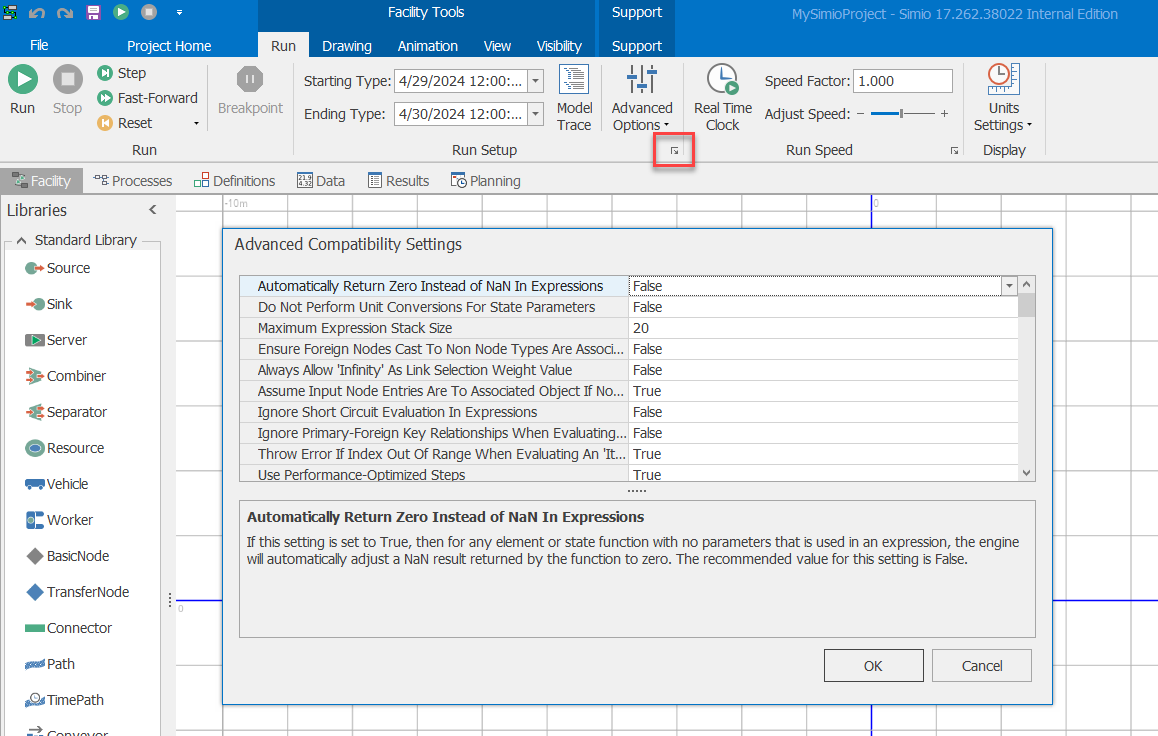
When the Compatibility Settings are bold, it means they are non-default and are making the model match the old Simio behavior before this change was made. Change the bit to default to see the new behavior.
Check out other verification techniques in the “How to Verify your Model” article.
If you are collaborating on a project with others, you will all need to use the same version of Simio. If you do not have the exact version of Simio they are using, consider downloading it and keeping multiple versions of the Simio application on your computer. See the “1. Keeping Multiple Versions of Simio Application” section above for more information.
If you are not using the same version of Simio when collaborating, you can encounter file compatibility issues. For more information on file compatibility issues, see the Article “Troubleshooting Compatibility Warning Upon Opening Project”.